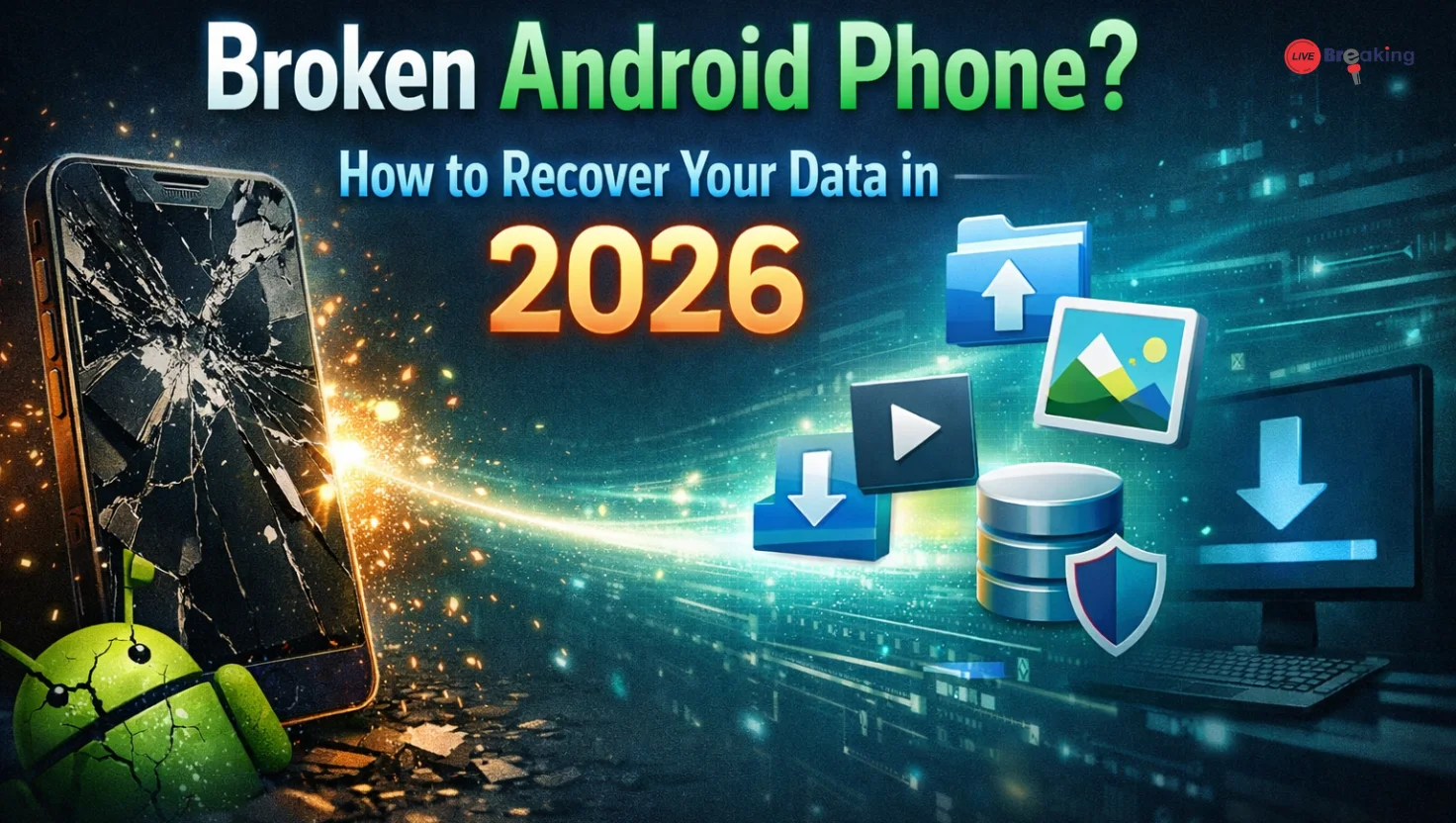
Broken Android Phone? How to Recover Your Data in 2026
Smartphones hold almost everything about our lives—photos, videos, contacts, banking apps, work files, and personal messages. So when your Android phone breaks, it can feel like you’ve lost a piece of your digital life.
Whether the screen is shattered, the phone won’t turn on, or it’s stuck in a boot loop, data recovery is often still possible. Thanks to modern cloud services, recovery software, and built-in Android features, retrieving your data in 2026 is easier than ever.
In this guide, we’ll explore the best methods to recover data from a broken Android phone, including cloud backups, USB debugging tools, recovery software, and professional repair options.
Common Reasons Why Android Phones Break
Before diving into recovery methods, it’s helpful to understand the common types of damage that affect Android phones.
| Problem Type | Description | Data Recovery Possibility |
|---|---|---|
| Broken Screen | Phone works but display is cracked or unresponsive | High |
| Water Damage | Phone exposed to water or moisture | Medium |
| Software Crash | System fails to boot or stuck on logo | High |
| Dead Battery / Power Issue | Phone won’t turn on | Medium |
| Motherboard Damage | Hardware failure | Low to Medium |
The good news is that in many cases the internal storage remains intact, allowing data recovery.
Method 1: Recover Data Using Google Account Backup
The easiest way to restore your files is through your Google account backup.
Most Android phones automatically sync:
-
Contacts
-
Photos
-
Calendar
-
Google Drive files
-
App data
-
Messages (on some devices)
Steps to Recover Data
-
Open a new Android device.
-
Sign in with the same Google account.
-
Choose Restore from Backup during setup.
-
Select the most recent backup.
Within minutes, your important data will start syncing to your new device.
Tip
Check backups at:
Settings → Google → Backup → Google One Backup
Method 2: Retrieve Files Using Google Photos
If your phone had Google Photos backup enabled, your photos and videos are already safe.
How to Recover Photos
-
Visit photos.google.com
-
Log in with your Google account
-
Download your photos and videos
This method works even if your phone is completely broken.
Method 3: Recover Data Using a Computer (USB Connection)
If your phone still powers on but the screen is broken, you may still recover files using a computer.
What You Need
-
USB cable
-
Computer or laptop
-
USB debugging enabled (optional but helpful)
Steps
-
Connect your phone to a computer using a USB cable.
-
Select File Transfer (MTP mode).
-
Open the device storage on your computer.
-
Copy photos, documents, and videos to your PC.
This method works best when the phone’s internal storage is still accessible.
Method 4: Use Android Data Recovery Software
Several data recovery tools can scan your device and retrieve lost files.
Popular Android Data Recovery Tools
| Software | Key Features |
|---|---|
| Dr.Fone | Recovers contacts, messages, photos |
| Tenorshare UltData | Works with broken screen phones |
| EaseUS MobiSaver | Free version available |
| iMobie PhoneRescue | Deep scanning recovery |
These tools connect your phone to a computer and scan the internal storage to restore deleted or inaccessible data.
Read more: Celebrity Gamers and Online Gaming Culture, Stars Shaping the Gaming World
Method 5: Recover Data from a Broken Screen Using OTG
If your touchscreen doesn’t work, you can still control your phone using an OTG adapter.
What You Need
-
OTG adapter
-
USB mouse
Steps
-
Connect the OTG adapter to your phone.
-
Plug a USB mouse into the adapter.
-
Use the mouse to unlock your phone.
-
Enable file transfer or backup options.
This trick works surprisingly well and allows you to recover files without repairing the screen.
Method 6: Extract Data Using Android Debug Bridge (ADB)
For advanced users, ADB tools can recover data even if the screen is damaged.
ADB allows you to control your phone from a computer.
Example Command
This command copies all photos from your phone to your computer.
However, this method requires USB debugging to be enabled beforehand.
Method 7: Professional Data Recovery Services
If your phone has severe hardware damage, professional recovery services may help.
These services can extract data directly from the storage chip.
Read more: Top vivo Phones under Rs. 15,000 with Premium Design and Features
When to Consider Professional Recovery
-
Phone completely dead
-
Motherboard damage
-
Severe water damage
-
Important business data lost
However, these services can be expensive, sometimes costing hundreds of dollars.
Tips to Protect Your Data in the Future
Data loss can be stressful, but simple habits can prevent it.
Best Practices
-
Enable Google Backup
-
Turn on Google Photos auto backup
-
Use cloud storage like Google Drive
-
Back up your phone weekly
-
Use screen protectors and protective cases
Keeping backups ensures you never lose your important memories or files.
Read more: Apple CEO Tim Cook Confirms March 2026 Launch Spree: What Can We Expect
The Future of Android Data Recovery (2026 and Beyond)
Android recovery tools are becoming smarter thanks to AI-based data recovery systems and automatic cloud syncing.
Future smartphones may include:
-
Automatic background backups
-
Built-in recovery modes
-
AI repair diagnostics
-
Remote data recovery from the cloud
These advancements will make data loss much less common in the coming years.
Conclusion
A broken Android phone doesn’t necessarily mean your data is lost forever. Whether it’s through Google backups, recovery software, OTG adapters, or professional services, there are multiple ways to retrieve your important files.
The best strategy is prevention—keeping regular backups ensures your memories, contacts, and documents remain safe even if your device stops working.
If your phone ever breaks, stay calm—your data is likely still recoverable.
FAQ: Broken Android Phone Data Recovery
Q1: Can data be recovered from a completely dead Android phone?
Yes, in many cases professionals can extract data directly from the storage chip using specialized tools.
Read more: How Mossad Spies & Hacked Traffic Cameras Led to Khamenei Assassination – Deep Intel Report
Q2: How can I recover photos from a broken Android phone?
You can recover them through Google Photos, Google Drive backup, or by connecting the phone to a computer.
Q3: Is Android data recovery software safe?
Most reputable tools like Dr.Fone, EaseUS, and PhoneRescue are safe, but always download from official websites.
Q4: Can I recover data if the screen is broken?
Yes. You can use an OTG adapter with a mouse or connect the phone to a computer.
Q5: Does factory reset delete everything permanently?
Usually yes, but recovery software may still retrieve some data if it hasn’t been overwritten.